Quantcast
Channel: Android point
Viewing all 106 articles
Browse latest View live

ActiveAndroid ORM in android

$
0
0
In this article, I am focusing about the ActiveAdroid Orm database in Android. I have already discussed with GreenDAO fast ORM in android. If you still not checked then please check this link GreenDao fast ORM in android. Yes, this is really fast no doubt but this is required to used when we required a large amount of data to store into the database for offline and sync with online. I would be recommended to use this powerful ORM.

Now we need an SQLite database for a small application I would say to use the ActiveAndroid ORM.
This is pretty easy to add in any application and configuration is also very simple. Now the question is why ORM and this kind of wrapper if already having android SQLite database and SQL query? I would say now the time is an object oriented based concept. ActiveAndroid ORM is object relation mapping concept. It is very easy to understand and does not require any complex SQL query if you want any data from the table.

ActiveAndroid wrapper provides Object-Relational mapper for mapping the java classes to database tables and mapping java class member variables to the table columns. It does not require any raw query to get the information. It makes easy and pretty simple for developers because it is everything based on the object. Through the object, we can create and modify the table row.  For more detail Check Official DocumentActiveAndroid.

Before going through the code first check the uploaded video to understand What thing going to implement in this article.  Here is uploaded video.


Thanks, for watching the video.Ok, Let's create an android project for building the ActiveAndroid database. First of all, we need to required configuration.

1. Add the dependency into Gradle file.

build.gradle project level and app level

 repositories {
jcenter()
maven { url "https://oss.sonatype.org/content/repositories/snapshots/" }
}

compile 'com.michaelpardo:activeandroid:3.1.0-SNAPSHOT'

2. Create Main Application and initialize the ActiveAndroid and add this application in the AndroidManfest file. Here you can add meta tag for database name and version. Even you can give configuration for dynamic also but Here I am setting in application tag only.


public class MainApplication extends Application{

@Override
public void onCreate() {
super.onCreate();
ActiveAndroid.initialize(this);
}
}

And add this meta tag inside the application tag.

<meta-data android:name="AA_DB_NAME" android:value="AndroidPoint.db" />
<meta-data android:name="AA_DB_VERSION" android:value="1" />

Ok great, You have done so far. Let's create the Object model for a table.

Article.java


import com.activeandroid.Model;
import com.activeandroid.annotation.Column;
import com.activeandroid.annotation.Table;

/**
* Created by sunil on 18-03-2017.
*/

@Table(name = "Article", id = "article_id")
public class Article extends Model{

// This is the unique id given by the server
@Column(name = "id")
private long id;

// This is a regular field
@Column(name = "Title")
public String title;

@Column(name = "Description")
public String description;

@Column(name = "Author")
public String author;

// Make sure to have a default constructor for every ActiveAndroid model

public Article(){
super();
}

public Article (String title, String description, String author){
super();
this.title = title;
this.description = description;
this.author = author;
}

public String getTitle() {
return title;
}

public void setTitle(String title) {
this.title = title;
}

public String getDescription() {
return description;
}

public void setDescription(String description) {
this.description = description;
}

public String getAuthor() {
return author;
}

public void setAuthor(String author) {
this.author = author;
}
}

ArticleManager.java

import com.activeandroid.query.Delete;
import com.activeandroid.query.Select;
import com.sunil.activeandroiddbapp.model.Article;

import java.util.ArrayList;
import java.util.List;

/**
* Created by sunil on 18-03-2017.
*/

public class ArticleManager {

public static void addArticle(Article article){
article.save();
}

public static List getAllArticle(){
List articles = new ArrayList<>();
articles = new Select().from(Article.class).execute();
return articles;
}

public static List getArticle(Article article){
List articles = new ArrayList<>();
articles = new Select().from(Article.class)
.where("article_id = ?", article.getId())
.orderBy("Title ASC")
.execute();
return articles;
}

public static void deleteArticle(Article article){
new Delete().from(Article.class).where("article_id = ?", article.getId()).execute();
}
}

MainActivity.java


public class MainActivity extends AppCompatActivity {

@BindView(R.id.recyclerView)
RecyclerView recyclerView;
@BindView(R.id.addArticle)
Button addArticle;

private ArticleAdapter articleAdapter;

@Override
protected void onCreate(Bundle savedInstanceState) {
super.onCreate(savedInstanceState);
setContentView(R.layout.activity_main);
ButterKnife.bind(this);
}

@Override
protected void onResume() {
super.onResume();
initView();
}

private void initView() {
recyclerView.setLayoutManager(new LinearLayoutManager(this));
List list = getArticles();
if (list != null) {
articleAdapter = new ArticleAdapter(this, list);
recyclerView.setAdapter(articleAdapter);
}else{
Toast.makeText(MainActivity.this, "No article found.", Toast.LENGTH_LONG).show();
}
}

private List getArticles(){
List articleList = ArticleManager.getAllArticle();
return articleList;
}

@OnClick(R.id.addArticle)
public void addArticle(){
Intent intent = new Intent(MainActivity.this, AddNewArticleActivity.class);
startActivity(intent);

}

}

AddNewArticleActivity.javap


/**
* Created by sunil on 18-03-2017.
*/

public class AddNewArticleActivity extends AppCompatActivity {

@BindView(R.id.articleName)
EditText articleName;
@BindView(R.id.articleDesc)
EditText articleDesc;
@BindView(R.id.addButton)
Button addButton;

@Override
protected void onCreate(@Nullable Bundle savedInstanceState) {
super.onCreate(savedInstanceState);
setContentView(R.layout.activity_new_acticle);
ButterKnife.bind(this);

initView();
}

private void initView() {

}

@OnClick(R.id.addButton)
public void addNewArticle(){
String articleTitle = articleName.getText().toString();
String articleDescription = articleDesc.getText().toString();
if (articleTitle.isEmpty() && articleDescription.isEmpty()){
Toast.makeText(AddNewArticleActivity.this, "Please enter details.", Toast.LENGTH_LONG).show();
}else{
Article article = new Article();
article.title= articleTitle;
article.description =articleDescription;
article.author ="Sunil";
ArticleManager.addArticle(article);

finish();
}

}
}
Wow looks pretty simple database implementation by using ActiveAndroid. I hope you like this article. Thanks for reading this post.

RxBinding with RxJava in android

$
0
0
In my last tutorials, I have marked about how RxJava is working with the RxAndroid world. We understood what is Rx does? In the Rx world, it means Reactive Extension it means when anything changes it will react something. It is strongly follows the observer pattern. If you want to check What is Observable and How Observer gets notify once you anything changes in Observable Object. I would strongly recommend please check this links RxJava in Android part1 and RxJava in Android part2.

Now In RxWorld, the new terminology comes RxBinding. What is RxBinding? It is mapping an Observable to Android events (view, click) very strongly. I have marked that in the old pattern we have used many callback and listener. It is very difficult to understand for any new developer and it does not give any proper Architecture of our project. It makes always confusion to the developer to maintain the callback. It really makes our life hell. 

RxBinding will give the best Rx Architecture and makes your code structure quite good. I believe that RxBinding will provide the most efficient way of mapping listeners to Observables. It is working quite good with any design pattern. 

Let's check How we can use RxBinding with EditText for text change listener. 

   private void setupRxListener() {
RxTextView.textChanges(emailEditText).subscribe(new Consumer() {
@Override
public void accept(@NonNull CharSequence charSequence) throws Exception {
Toast.makeText(RxBindTestActivity.this, charSequence, Toast.LENGTH_LONG).show();
}
});
}

Great That is very simple. For the best practice, You need to bind the view or layout by using ButterKnief and unBind it on onDestroy() method. It avoid the memory leak. Some time resources are taking a lot of memory. In this case, it gives OutOfMemory and it gives backpressure on the user interface. To avoid this RxJava version1 rewritten and came new concept of Flowable which handle the backpressure.

Flowable is the just updated version of Observable. What Observable does same and everything is done by Flowable. Only thing change in Flowable is that it can handle the backpressure on the user interface.

So the question is where we need to use Flowable. You can use Flowable if you need any long operation kind of thing for example reading or parsing files from disk, reading the database and any networking operation there we can use Flowable. It can handle the backpressure easily to maintain the buffer. For more detail, you can check the official documentation RxBinding.

Lets me give one example of the login page and used validation by using RxBinding by using RxJava and RxAndroid.

RxBindTestActivity.java


import android.os.Bundle;
import android.support.annotation.Nullable;
import android.support.v7.app.AppCompatActivity;
import android.text.TextUtils;
import android.util.Patterns;
import android.widget.Button;
import android.widget.EditText;
import android.widget.Toast;

import com.jakewharton.rxbinding2.widget.RxTextView;


import butterknife.BindView;
import butterknife.ButterKnife;
import butterknife.OnClick;
import butterknife.Unbinder;
import io.reactivex.BackpressureStrategy;
import io.reactivex.Flowable;
import io.reactivex.annotations.NonNull;
import io.reactivex.functions.BiFunction;
import io.reactivex.functions.Consumer;
import io.reactivex.subscribers.DisposableSubscriber;

/**
* Created by sunil on 19-03-2017.
*/

public class RxBindTestActivity extends AppCompatActivity {

@BindView(R.id.email)
EditText emailEditText;

@BindView(R.id.password)
EditText passwordEdiText;

@BindView(R.id.login)
Button login;

Flowable emailFlowable;
Flowable passFlowable;
Unbinder unBinder;
private boolean isValidForm;

private DisposableSubscriber disposableSubscriber;

@Override
protected void onCreate(@Nullable Bundle savedInstanceState) {
super.onCreate(savedInstanceState);
setContentView(R.layout.activity_rxbind);
unBinder = ButterKnife.bind(this);

initView();
checkValidation();

}

@OnClick(R.id.login)
public void loginClick() {
if (isValidForm){
Toast.makeText(RxBindTestActivity.this, "Login Completed", Toast.LENGTH_LONG).show();
}else{
Toast.makeText(RxBindTestActivity.this, "Something is not valid", Toast.LENGTH_LONG).show();
}
}

@Override
protected void onDestroy() {
super.onDestroy();

if (!disposableSubscriber.isDisposed()) {
disposableSubscriber.dispose();
}
unBinder.unbind();
}

private void initView() {
emailFlowable = RxTextView.textChanges(emailEditText).skip(1).toFlowable(BackpressureStrategy.LATEST);
passFlowable = RxTextView.textChanges(passwordEdiText).skip(1).toFlowable(BackpressureStrategy.LATEST);
}

private void checkValidation() {

disposableSubscriber = new DisposableSubscriber() {
@Override
public void onNext(Objecti object1) {
if (object1 instanceof Boolean) {
boolean isValid = (boolean) object1;
if (isValid) {
// valid form
login.setAlpha(1);
} else {
// invalid form
login.setAlpha(0.3f);
}
}

}

@Override
public void onError(Throwable t) {
Toast.makeText(RxBindTestActivity.this, "Error: " + t, Toast.LENGTH_LONG).show();
}

@Override
public void onComplete() {
Toast.makeText(RxBindTestActivity.this, "Good to go", Toast.LENGTH_LONG).show();
}
};

Flowable.combineLatest(emailFlowable, passFlowable, new BiFunction(){

@Override
public Object apply(@NonNull CharSequence newEmail, @NonNull CharSequence newPassword) throws Exception {

boolean emailValid = !TextUtils.isEmpty(newEmail) && Patterns.EMAIL_ADDRESS.matcher(newEmail).matches();
if (!emailValid) {
emailEditText.setError("Invalid Email!");
}

boolean passValid = !TextUtils.isEmpty(newPassword) && newPassword.length() > 6;
if (!passValid) {
passwordEdiText.setError("Invalid Password!");
}
isValidForm = emailValid && passValid;
return isValidForm;
}
}).subscribe(disposableSubscriber);

}
}

activity_rxbind.xml


<?xml version="1.0" encoding="utf-8"?>
<RelativeLayout xmlns:android="http://schemas.android.com/apk/res/android"
android:orientation="vertical" android:layout_width="match_parent"
android:layout_height="match_parent"
android:padding="10dp">

<EditText
android:id="@+id/email"
android:layout_width="match_parent"
android:layout_height="wrap_content"
android:hint="Enter Email"/>

<EditText
android:id="@+id/password"
android:layout_width="match_parent"
android:layout_height="wrap_content"
android:layout_marginTop="10dp"
android:hint="Enter Password"
android:layout_below="@+id/email"/>

<Button
android:layout_marginTop="20dp"
android:id="@+id/login"
android:layout_width="match_parent"
android:layout_height="wrap_content"
android:text="Login"
android:background="@color/colorPrimary"
android:textColor="#fff"
android:layout_below="@+id/password"/>

</RelativeLayout>


I think we can start using the Rx means Reactive. It provides us a lot more feature to make your code structure and powerful. Thanks for reading this post.

MVP with RxJava in Android

$
0
0
In my last tutorial, I have written many articles to use RxJava in android. RxJava is really very hot into the market today and many developers are using reactive functionality in our applications. It provides much more features to build the awesome app. The basic of RxJava I have already explained in my earlier articles. If you have not checked before then please go ahead and check all my posted article about RxJava in Android. Here are details link  RxJava in Android part1 and RxJava in Android part2.

In this article, We will learn how to build the android app by using RxJava and MVP. MVP stand for Model View Presenter. MVP is very popular design pattern in android. Prior we practiced old design pattern name MVC (Moel View Controller). Now many of developers they are using MVP.

Let's discuss Why MVP ? and Why not MVC?

Here is the diagram that represents the MVC and MVP design pattern.


So Here are different - different aspect used in the design pattern. First, we need to know What is the mean of those aspects.

Model: Model represent the collection of classes that represent the business model and data model. It means that how the data can manipulate.

View: View represents the user interface component like Button, TextView etc. View display the data from the model and also change the model from the user interface.

Controller: Controller work is like a mediator. It processes the incoming request from model to change in view or get input from the view to make the change in the model.

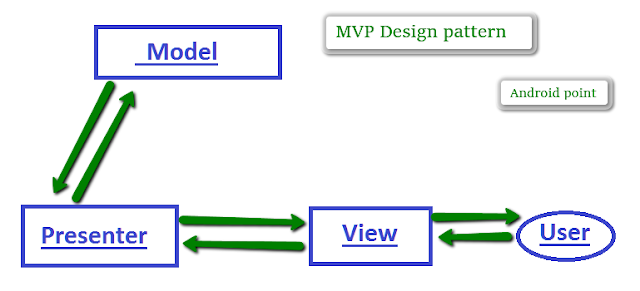
Presenter: Presenter is responsible for marking all user interface event on behalf of View. It processes the user data from the model and reflects on View and similarly, It processes the view action of the user and makes the change into the model. Here there is the direct communication from model to view and vice Versa.

Now the people are using very complex user interface and business model. In MVC it creates a lot of problems that recovered in MVP. MVC design pattern provides the communication through the Controller but this is not mandatory. It can be from model to view also and vice versa. It will create the problem in future if we need to add any new feature in existing code or required maintenance of our application. In this case, a developer has to face many issues. They will get stuck in resolving the view hierarchy issue rather than focus on business logic. Even debug and Unit testing will be very difficult for the developer in single class or model.

MVP design pattern provides the solution to those issues. It is easier for adding any new feature into existing model. For example, Suppose in one of the apps I used offline data sync it means storing the data into DB and fetching the data from the DB to reflect into view. If we required syncing these data with a server for online. Then for this, we do not require too many changes into code. A developer easily adds this feature in presenter class and nothing required to change the view or model code. It makes our life pretty easy to add any new features or maintenance.

MVP  has a single presenter for every activity or fragment to communication. Single presenter works with any view at a time. Model is not talking with View. It divides our code into different- different model with a single presenter. So it's easy for the developers to debug and unit testing of a single model.

Ok Now, let's create an android project by using RxJava with MVP design pattern. Here I am using the Green dao database for storing data. Ok Lets I have stored some data and want to show on recyclerView. Here are the details of the MVP design structure.


For using RxJava we need to add these two dependencies into our project. Reactive functionality are available in this library.


compile 'io.reactivex.rxjava2:rxandroid:2.0.1'
compile 'io.reactivex.rxjava2:rxjava:2.0.8'
First, we need to create the base presenter and base view interface.


/**
* Created by sunil on 4/6/2017.
*/

public interface BasePresenter {

void subscribe();
void unSubscribe();
}
Let's create base view interface.

public interface BaseView {

void setPresenter(T presenter);
}

LoadArticleContact.java


/**
* Created by sunil on 4/7/2017.
*/

public class LoadArticleContact {

public interface Presenter extends BasePresenter {
void deleteArticle(@NonNull String id);
void loadArticle(boolean forceUpdate);
}
public interface View extends BaseView {
void onLoading();
void onLoadOk(List<Articles> articles);
void onLoadError(String msg);
void onLoadFinish();
void deleteArticle(@NonNull String id);
}

}

LoadArticlePresenter .java


import android.support.annotation.NonNull;

import com.google.common.base.Preconditions;
import com.google.common.base.Throwables;
import com.sunil.data.model.Article;
import com.sunil.data.source.ArticleLocalDataSource;

import org.reactivestreams.Subscriber;
import org.reactivestreams.Subscription;

import java.util.List;

import io.reactivex.Flowable;
import io.reactivex.disposables.CompositeDisposable;
import io.reactivex.functions.Action;
import io.reactivex.functions.Consumer;
import timber.log.Timber;

/**
* Created by sunil on 4/7/2017.
*/

public class LoadArticlePresenter implements LoadArticleContact.Presenter{

@NonNull
private final LoadArticleContact.View mArticleView;

private CompositeDisposable mCompositeDisposable;

private ArticleLocalDataSource mArticleLocalDataSource;

public LoadArticlePresenter(@NonNull ArticleLocalDataSource articleLocalDataSource, @NonNull LoadArticleContact.View articleView) {
mArticleLocalDataSource = articleLocalDataSource;
mArticleView = articleView;
mArticleView.setPresenter(this);
mCompositeDisposable = new CompositeDisposable();
}


@Override
public void deleteArticle(@NonNull String id) {
Preconditions.checkNotNull(id);
mArticleLocalDataSource.deleteArticle(id);
mArticleView.deleteArticle(id);
}

@Override
public void loadArticle(boolean forceUpdate) {
if (forceUpdate) {
Flowable> listFlowable = mArticleLocalDataSource.getArticles();
listFlowable.doOnSubscribe(new Consumer() {
@Override
public void accept(@io.reactivex.annotations.NonNull Subscription subscription) throws Exception {

}
}).subscribe(new Consumer>() {
@Override
public void accept(@io.reactivex.annotations.NonNull List<Article> articles) throws Exception {
mArticleView.onLoadOk(articles);
}
}, new Consumer() {
@Override
public void accept(@io.reactivex.annotations.NonNull Throwable throwable) throws Exception {
Preconditions.checkNotNull(throwable);
mArticleView.onLoadError(throwable.getMessage());
}
}, new Action() {
@Override
public void run() throws Exception {
mArticleView.onLoadFinish();
}
});

}
}

@Override
public void subscribe() {
if (mCompositeDisposable == null) {
mCompositeDisposable = new CompositeDisposable();
}
}

@Override
public void unSubscribe() {
mArticleView.onLoadFinish();
mCompositeDisposable.clear();

}
}

LoadArticleFragment.java


import android.app.Fragment;
import android.os.Bundle;
import android.support.annotation.NonNull;
import android.support.annotation.Nullable;
import android.support.v7.widget.LinearLayoutManager;
import android.support.v7.widget.RecyclerView;
import android.view.LayoutInflater;
import android.view.View;
import android.view.ViewGroup;
import android.widget.Toast;

import com.google.common.base.Preconditions;
import com.sunil.data.model.Article;
import com.sunil.data.source.ArticleLocalDataSource;
import com.sunil.mvprxjava.adapter.ArticleAdapter;
import com.sunil.mvprxjava.ui.addarticlle.ArticleContract;
import com.sunil.navigationslideroot.R;

import java.util.ArrayList;
import java.util.List;

import butterknife.BindView;
import butterknife.ButterKnife;

/**
* Created by sunil on 4/7/2017.
*/

public class LoadArticleFragment extends Fragment implements LoadArticleContact.View, ArticleAdapter.onItemClickListener{

@BindView(R.id.recyclerView)
RecyclerView recyclerView;

private LoadArticleContact.Presenter mPresenter;

public static LoadArticleFragment newInstance() {
return new LoadArticleFragment();
}

@Override
public void onResume() {
super.onResume();
mPresenter.subscribe();
}

@Override
public void onPause() {
super.onPause();
mPresenter.unSubscribe();
}

@Override
public void onActivityCreated(Bundle savedInstanceState) {
super.onActivityCreated(savedInstanceState);

// do things if you want to create only first time when activity created.
}

@Override
public void onCreate(Bundle savedInstanceState) {
super.onCreate(savedInstanceState);

}

@Nullable
@Override
public View onCreateView(LayoutInflater inflater, ViewGroup container,
Bundle savedInstanceState) {
View root = inflater.inflate(R.layout.fragment_load_article, container, false);
ButterKnife.bind(this, root);
mPresenter = new LoadArticlePresenter(new ArticleLocalDataSource(), this);
if (mPresenter != null){
mPresenter.loadArticle(true);
}

return root;
}


@Override
public void onLoading() {

}

@Override
public void onLoadOk(List<Article> articles) {
Preconditions.checkNotNull(articles);
// call adapter
ArticleAdapter articleAdapter = new ArticleAdapter(getActivity(), articles, this);
recyclerView.setLayoutManager(new LinearLayoutManager(getActivity()));
recyclerView.setAdapter(articleAdapter);

}

@Override
public void onLoadError(String msg) {
Toast.makeText(getActivity(), msg, Toast.LENGTH_LONG).show();
onLoadFinish();
}

@Override
public void onLoadFinish() {
// finish the dialog if using
Toast.makeText(getActivity(), "Completed", Toast.LENGTH_LONG).show();
}

@Override
public void deleteArticle(@NonNull String id) {
Toast.makeText(getActivity(), "Deleted", Toast.LENGTH_LONG).show();
}


@Override
public void setPresenter(LoadArticleContact.Presenter presenter) {
mPresenter = Preconditions.checkNotNull(presenter);
}

@Override
public void itemRemoveClick(long id) {
Preconditions.checkNotNull(id);
mPresenter.deleteArticle(String.valueOf(id));
}
}

This is required code for the MVP design. Here I used the local database for storage. In future, if I required the same thing for remote storage to fetch the data remotely. Then it does not require many code change. A developer will look into the presenter class to add remote or network call rather than touch any view or model class. He just required focusing on the business model.


Thanks for reading this post.

Runtime permission in Android

$
0
0
In my last tutorial, We had practiced awesome features of RxJava in Android. Here are the link details RxJava in android part1, RxJava in android part2 and MVP with RxJava.

Today we got one more day to learn something more. Let's make this day more awesome to learn something new. In this article, we will learn why runtime permission and how to give permission at runtime in the application. Earlier we have practiced that the user can be seen the permission detail at while installing the app. But in marshmallow device version 6.0 it has changed. Now application will not be granted the permission while installing the application. It will ask users at runtime. Why this is required? 


In the previous below the marshmallow versions like the lollipop and other lower version devices, User was felt like obvious to see the permission details while installing that, They might be thinking that why can I shared my confidential information without asking that permission. The application should be asked me, hey if you want to access those then please grant me permission to access. For example, if any other app wants to get access the phone contact then user feel obvious to give access those. That why it comes runtime permission. If the other application wants to access phone contact of users then its all depend on the user if they granted the permission or not. If the user has not granted then other application will not be allowed to access that information.


One common question of every developer that how android take care our old application launch on marshmallow device. So I would say do not panic be relaxed android take care that issue very smartly. If your application has built on targetsdkversion is less than 23 then it should not be crashed on Android M. It will work fine without any issue. Runtime permission will only ask users if you build the app on target SDK version 23 or higher. 


This really sounds good for the users to feel confidence that my phone is secure if I used to install any other application without any issue. Android take care security point of view at the top priority. Awesome:)


Okay, Let's see what are those permissions is granted while installing the application. These permissions called protection-level permission. It will not ask the user at runtime.

android.permission.ACCESS_LOCATION_EXTRA_COMMANDS
android.permission.ACCESS_NETWORK_STATE
android.permission.ACCESS_NOTIFICATION_POLICY
android.permission.ACCESS_WIFI_STATE
android.permission.ACCESS_WIMAX_STATE
android.permission.BLUETOOTH
android.permission.BLUETOOTH_ADMIN
android.permission.BROADCAST_STICKY
android.permission.CHANGE_NETWORK_STATE
android.permission.CHANGE_WIFI_MULTICAST_STATE
android.permission.CHANGE_WIFI_STATE
android.permission.CHANGE_WIMAX_STATE
android.permission.DISABLE_KEYGUARD
android.permission.EXPAND_STATUS_BAR
android.permission.FLASHLIGHT
android.permission.GET_ACCOUNTS
android.permission.GET_PACKAGE_SIZE
android.permission.INTERNET
android.permission.KILL_BACKGROUND_PROCESSES
android.permission.MODIFY_AUDIO_SETTINGS
android.permission.NFC
android.permission.READ_SYNC_SETTINGS
android.permission.READ_SYNC_STATS
android.permission.RECEIVE_BOOT_COMPLETED
android.permission.REORDER_TASKS
android.permission.REQUEST_INSTALL_PACKAGES
android.permission.SET_TIME_ZONE
android.permission.SET_WALLPAPER
android.permission.SET_WALLPAPER_HINTS
android.permission.SUBSCRIBED_FEEDS_READ
android.permission.TRANSMIT_IR
android.permission.USE_FINGERPRINT
android.permission.VIBRATE
android.permission.WAKE_LOCK
android.permission.WRITE_SYNC_SETTINGS
com.android.alarm.permission.SET_ALARM
com.android.launcher.permission.INSTALL_SHORTCUT
com.android.launcher.permission.UNINSTALL_SHORTCUT

Great. This permission is required to add in Android manifest file then it works fine without any crash. Now let's check what are required to check the permission if my target SDK version and compile SDK version is 23 or higher.

A developer needs to follow three basic methods.
1. checkSelfPermission(Permission) - to check the permission is already granted or not.
2. requestPermissions(String [] permissions, int requestCode) - if not then request for permission
3. onRequestPermissionsResult(int premsRequestCode, String [] permissions, int [] grantResults) - to check the result whether permission is granted or not.

Let's see one example I am building an app which targets SDK version is 23 or higher. I want location access in one of my application. First of all, you need to know what are permission is required for access the Location. Okay, How do I make sure? Let's check in framework level what Gooogle has defined for location access?

When I look this file DefaultPermissionGrantPolicy.java in framework module.
I found this permission is required to access the location.

privatestaticfinalSet<String> LOCATION_PERMISSIONS = newArraySet<>();
109static {
110LOCATION_PERMISSIONS.add(Manifest.permission.ACCESS_FINE_LOCATION);
111LOCATION_PERMISSIONS.add(Manifest.permission.ACCESS_COARSE_LOCATION);
112 }

So basically these two permission is required to access Location. Ok, Let's check while clicking on a button I want to access the location.

import android.Manifest;
import android.app.AlertDialog;
import android.content.DialogInterface;
import android.content.pm.PackageManager;
import android.os.Build;
import android.os.Bundle;
import android.support.annotation.Nullable;
import android.support.v4.app.ActivityCompat;
import android.support.v4.content.ContextCompat;
import android.support.v7.app.AppCompatActivity;
import android.widget.Button;
import android.widget.Toast;

import com.sunil.mvprxjavaapp.R;

import butterknife.BindView;
import butterknife.ButterKnife;
import butterknife.OnClick;

/**
* Created by sunil on 08-04-2017.
*/

public class RunTimePermissionTestActivity extends AppCompatActivity {

@BindView(R.id.RuntimeButton)
Button RuntimeButton;

@Override
protected void onCreate(@Nullable Bundle savedInstanceState) {
super.onCreate(savedInstanceState);
setContentView(R.layout.activity_runtime_permission);
ButterKnife.bind(this);

}

@OnClick(R.id.RuntimeButton)
public void RunTimeClick(){

if (android.os.Build.VERSION.SDK_INT >= Build.VERSION_CODES.M) {
if (ContextCompat.checkSelfPermission(this, Manifest.permission.ACCESS_FINE_LOCATION) == PackageManager.PERMISSION_GRANTED) {
//Location Permission already granted or not
tryToGetLocationValue();
} else {
//Request Location Permission
askLocationPermission();
}
}
else {
// not required any runtime permission for below M
tryToGetLocationValue();
}
}

public static final int MY_PERMISSIONS_REQUEST_LOCATION = 99;
private void askLocationPermission() {
if (ContextCompat.checkSelfPermission(this, Manifest.permission.ACCESS_FINE_LOCATION) != PackageManager.PERMISSION_GRANTED) {

// Should we show an explanation?
if (ActivityCompat.shouldShowRequestPermissionRationale(this,
Manifest.permission.ACCESS_FINE_LOCATION)) {

// Show an explanation to the user *asynchronously* -- don't block
// this thread waiting for the user's response! After the user
// sees the explanation, try again to request the permission. This info convince to users to allow
new AlertDialog.Builder(this)
.setTitle("Location Permission Needed")
.setMessage("This app needs the Location permission, please accept to use location functionality")
.setPositiveButton("OK", new DialogInterface.OnClickListener() {
@Override
public void onClick(DialogInterface dialogInterface, int i) {
//Prompt the user once explanation has been shown to ask for permission again
ActivityCompat.requestPermissions(RunTimePermissionTestActivity.this,
new String[]{Manifest.permission.ACCESS_FINE_LOCATION},
MY_PERMISSIONS_REQUEST_LOCATION );
}
})
.create()
.show();


} else {
// No explanation needed, we can request the permission.
ActivityCompat.requestPermissions(this,
new String[]{Manifest.permission.ACCESS_FINE_LOCATION},
MY_PERMISSIONS_REQUEST_LOCATION );
}
}
}

private void tryToGetLocationValue() {
Toast.makeText(this, "Good to go to fetch location", Toast.LENGTH_LONG).show();
}

@Override
public void onRequestPermissionsResult(int requestCode, String permissions[], int[] grantResults) {
switch (requestCode) {
case MY_PERMISSIONS_REQUEST_LOCATION: {
// If request is cancelled, the result arrays are empty.
if (grantResults.length > 0 && grantResults[0] == PackageManager.PERMISSION_GRANTED) {

// permission is granted
// location-related task you need to do.
if (ContextCompat.checkSelfPermission(this,
Manifest.permission.ACCESS_FINE_LOCATION) == PackageManager.PERMISSION_GRANTED) {

tryToGetLocationValue();
}

} else {

// permission denied
Toast.makeText(this, "permission denied", Toast.LENGTH_LONG).show();
}
return;
}

}
}
}

Add this line in Android Manifest file.


<uses-permission android:name="android.permission.ACCESS_COARSE_LOCATION">
<uses-permission android:name="android.permission.ACCESS_FINE_LOCATION">

Great You did well. It does not require to check permission for both ACCESS_COARSE_LOCATION and ACCESS_FINE_LOCATION. Android document said you can allow only one permission is enough for access but need to add both permissions in the android manifest file.


You can see about snaps, It will ask for the user to allow or deny. If a user has denied press and again he tries to access location while clicking on the button it prompts to the user to need permission access to user location functionality. Then this time prompts shows with check box never ask again. If the user has checked this box it means user not interested in allowing this permission and not interested in using location feature anymore.

Thanks for reading this post.

MVVM with RxJava in Android

$
0
0
In my last tutorial, we have learned the MVP design pattern which is most popular to used to build any android application. In that article, we had practiced building an application by using RxJava in MVP design pattern. If you are not checked my last articled which is based on MVP design pattern then I would recommend checking this here MVP with RxJava in android. Wow, that's great.

Today We got one more day lets make this day more awesome to learn something new. In this article, we will learn one more design pattern which comes from data binding in android that is called MVVM (Model View ViewModel). Model view ViewModel is similar like MVP.


Here we need to understand the what are the aspects in this diagram. Let me explain one by one.

Model: Model represents the classes that used for creating the business model of an application. It means how the data can manipulate.

View: View represents the user interface means Button or TextView. View display the data from the model.The view which binds with Observable variables and action triggered for ViewModel.

ViewModel: ViewModel is a middle layer for interaction between the View and model. Its responsibility is preparing the Observable data which is needed to view and also hooks for model event triggered from view.
This pattern is using the data binding concept which means that multiple views contain with single ViewModel. ViewModel should have all information which is required for the view.  In this case, ViewModel that can be reused for multiple views. For Single ViewModel interaction for a module, our debug and unit testing becomes easy. A developer can find the issue easily and it makes easy to add any new feature in existing code. Overall it makes our life pretty easy and simple.

Let's create an android project by using RxJava in MVVM design pattern. The code structure will be exactly same as we have shown in MVP. Please check this structure for MVVM.


Here I am using the green dao ORM for a database. In this project, I am trying store articles information and fetch to display those articles on recyclerView. Let's. Lets create the base interface and BaseFragment class.

public interface BaseView {

interface View {

}

interface ViewModel {

void onViewResumed();
void onViewAttached(@NonNull BaseView.View viewCallback);
void onViewDetached();
}
}

BaseFragment.java

public abstract class BaseFragment extends Fragment implements BaseView.View{


protected abstract BaseView.ViewModel getViewModel();

@Override
public void onResume() {

super.onResume();
getViewModel().onViewResumed();
}

@Override
public void onStart() {

super.onStart();
getViewModel().onViewAttached(this);
}

@Override
public void onStop() {

super.onStop();
getViewModel().onViewDetached();
}
}

LoadArticleContract.java

public class LoadArticleContract {

interface View extends BaseView.View {

void onLoading();
void onLoadingError(String msg);
void onLoadingFinish();
void onLoadingOK(List<Article> articles);
}

interface ViewModel extends BaseView.ViewModel {

void deleteArticle(@NonNull String id);
void loadArticle(boolean forceUpdate);
}
}

LoadArticleViewModel.java

public class LoadArticleViewModel implements LoadArticleContract.ViewModel{

@NonNull
private LoadArticleContract.View mArticleView;

private ArticleLocalDataSource mArticleLocalDataSource;

public LoadArticleViewModel(@NonNull ArticleLocalDataSource articleLocalDataSource, LoadArticleContract.View articleView) {
mArticleLocalDataSource = articleLocalDataSource;
this.mArticleView = articleView;
}
@Override
public void deleteArticle(@NonNull String id) {

if (mArticleView != null){
Preconditions.checkNotNull(id);
mArticleLocalDataSource.deleteArticle(id);
mArticleView.onLoadingFinish();
}

}

@Override
public void loadArticle(boolean forceUpdate) {
if (forceUpdate){
Flowable<List<Article>> listFlowable = mArticleLocalDataSource.getArticles();
listFlowable.doOnSubscribe(new Consumer() {
@Override
public void accept(@io.reactivex.annotations.NonNull Subscription subscription) throws Exception {

}
}).subscribe(new Consumer>() {
@Override
public void accept(@io.reactivex.annotations.NonNull List<Article> articleList) throws Exception {
mArticleView.onLoadingOK(articleList);

}
}, new Consumer() {
@Override
public void accept(@io.reactivex.annotations.NonNull Throwable throwable) throws Exception {
Preconditions.checkNotNull(throwable);
mArticleView.onLoadingError(throwable.getMessage());
}
});
}
}

@Override
public void onViewResumed() {

}

@Override
public void onViewAttached(@NonNull BaseView.View viewCallback) {
this.mArticleView = (LoadArticleContract.View) viewCallback;
}

@Override
public void onViewDetached() {
this.mArticleView = null;
}
}

ArticleLocalDataSource.java

public class ArticleLocalDataSource implements ArticleDataSource{

private final static String TAG = ArticleLocalDataSource.class.getSimpleName();

private ArticleDao getArticleDao() {
Timber.d(TAG, "getArticleDao()", Thread.currentThread().getName(), Thread.currentThread().getId());
return GreenDaoDatabase.getInstance().getDaoSession().getArticleDao();
}

@Override
public Flowable<List<Article>> getArticles() {
return Flowable.fromCallable(new Callable<List<Article>>() {
@Override
public List<Article> call() throws Exception {
Timber.d(TAG, "getArticles()", Thread.currentThread().getName(), Thread.currentThread().getId());
List list = getArticleDao().loadAll();
Timber.d("getArticles: " + list.size());
return list;
}
});
}

@Override
public long saveArticle(@NonNull Article article) {
Timber.d(TAG, "saveBook()", Thread.currentThread().getName(), Thread.currentThread().getId());
return getArticleDao().insertOrReplace(article);
}

@Override
public void deleteArticle(@NonNull String id) {
Timber.d(TAG, "deleteArticle()", Thread.currentThread().getName(), Thread.currentThread().getId());
getArticleDao().deleteByKey(Long.valueOf(id));
}
}

Here in future, if required to store this articles information on the server and fetch those article from the server and save on locally. Then It will not require much code changes. We just need to look into ViewModel class rather than wasting any time on view or model class. It is a separate class that makes debug and unit testing becomes easy for the developer.

Thanks for reading this post.

Debug Database in Android

$
0
0
In my last tutorial, we have learned how we can use persistence database in android. We also understood which database wrapper we can use in our application. Its all depend on our application that how frequently communicating with the database. If my application is a big usage of the database for online and offline sync then I would recommend using Green Dao ORM otherwise we can use Android Active ORM for a small application. Here are the link detail for GreenDao Fast ORM in Android and Active Android ORM in android.

Now, this tutorial is based on an android database. Many of android developer asked about how to debug our database if the application running on my emulator. To debug database there are many ways you can, But some of the very strong pattern we can debug the database of my application.

1. Sqlite3 by using ADB: 

There is a command line version of sqlite3 available that allow you to directly access, view and modify SQLite Database in the ADB root shell on the Android device without having to copy your database on a computer or anywhere.

To view or modify the database by Sqlite3 you need to follow few steps. Here are steps
1. Open ADB shell (You can find the ADB from the Android SDK installed location, for example,         user/AppData\Local\Android\Sdk\platform-tools). Now you need to start this ADB from a                   terminal window or cmd.

2. Open command prompt and change directory to type this                                              cd C:\Users\username\AppData\Local\Android\Sdk\platform-tools
Then You will reach to this directory path like that:
C:\Users\username\AppData\Local\Android\Sdk\platform-tools>

3. Enter command: adb shell 
Once you enter above command you can find the device name. You can check all databases which exist on this location. You can use command .databases

4. Now you can use this command: sqlite3 databaseName.db

5. Now You can see all table exist in this database. What you need to give command .tables

Now You can add or modify data in a table and fetch data from a table. You just need to enter below command.

sqlite3 > select * from table1;
     
Even if not know about the existence command of sqlite3 then you just get a help to enter command .help
I hope You can debug your database easily by using ADB.

2. A Fork on a local Computer by ADB Command:

This also one of a great approach to see your database schema and debug your query. Ok, let's see how?
What you need to do that just fork your database on a local computer on simple one command.Just One thing make sure that what DB name with the extension you give, ex. Dbname.sqlite, dbname.db

adb -d shell 'run-as com.yourPackageName cat /data/data/com.yourPackageName/databases/dbname.sqlite > /sdcard/dbname.sqlite'

That's it It will fork your database on a local machine and open this database in any open source tool. SQL queries. available to download at DB Browser for SQLite. 

3. Android Debug Database Tools- 


Tools are the best way to debug database on GUI presentation. I will give you some of the debug database tools that help your life pretty easy and simple.

1. Android-Debug-Database is one of the best tools to debug your complex database. It provides the GUI interface to check your database schema. And its configuration is also very simple.
What you need to do just follow few simple steps to configure.

Step 1: Add the following dependency to your app's Gradle file.

     
debugCompile 'com.amitshekhar.android:debug-db:1.0.0'

Step 2: Build and run your app.


Step 3: Now look into the Android studio log cat. You can get one URL link of localhost. What you need to do just copy this URL and use your IP address to browse the database. Open in your browser the URL: http://YOUR_PHONE_IP_ADDRESS:8080 and you will be presented there.I would be recommended please check for more details in the official documentations.


2. SQLiteOnWeb-Android is also similar to Android Debug databases tool. You can get help from an official site.

4. DatabaseManager for Android:

This is one of the best kind of java library to get the database tables on android UI. A configuration is a little bit difficult for the beginner but Official Documentation explained better for your understanding.

It's a single Java activity file; just add it to your source folder. You can view the tables in your app database, update, delete, insert rows to your table. Everything from inside your app. When the development is done remove the Java file from your src folder. That's it.

For a better understanding, it provides the video also. You can view the 5-minute demo, Database Manager for Android SQLite Database. Here is the video detail.


5.A Debug Bridge for Android Application:

This is one of the best tools which is given by facebook for debugging android database. Here is Stetho Official Documentation that well designed and described. You need to add few dependency files in your Gradle file.


dependencies {
// Stetho core
compile 'com.facebook.stetho:stetho:1.5.0'
//If you want to add a network helper
compile 'com.facebook.stetho:stetho-okhttp:1.5.0'
}

Great. Now you need to add few lines in your AminApplication file.

public class MyApplication extends Application {
public void onCreate() {
super.onCreate();
Stetho.initializeWithDefaults(this);
}
}
Great. Even you better configuration then you use Custom plugins. Custom plugins are the preferred means of extending the dump app system and can be added easily during configuration. Simply replace your configuration step as such:

public class MyApplication extends Application {
public void onCreate() {
super.onCreate();
Stetho.initialize(Stetho.newInitializerBuilder(context)
.enableDumpapp(new DumperPluginsProvider() {
@Override
public Iterable get() {
return new Stetho.DefaultDumperPluginsBuilder(context)
.provide(new MyDumperPlugin())
.finish();
}
})
.enableWebKitInspector(Stetho.defaultInspectorModulesProvider(context))
.build());
}
}

For an extra bonus, if you looking something awesome then use this plugin. But it is paid.Here is the Idescout Official Documentation.

I hope that all will help you to better understanding in debugging the database.
Viewing all 106 articles
Browse latest View live